How to Add a Person to a Photo
To add a person to a photo, you need two photos that roughly agree on camera angle and light, and a way to place the person at the right size with matching shadows. You can let an AI tool do the placing and blending in about a minute, do it by hand in an editor, or pay a retoucher. This guide covers the choices that decide whether the result looks real, and compares the options.
First photo free with an account · then 5 photos for $4.99, no subscription
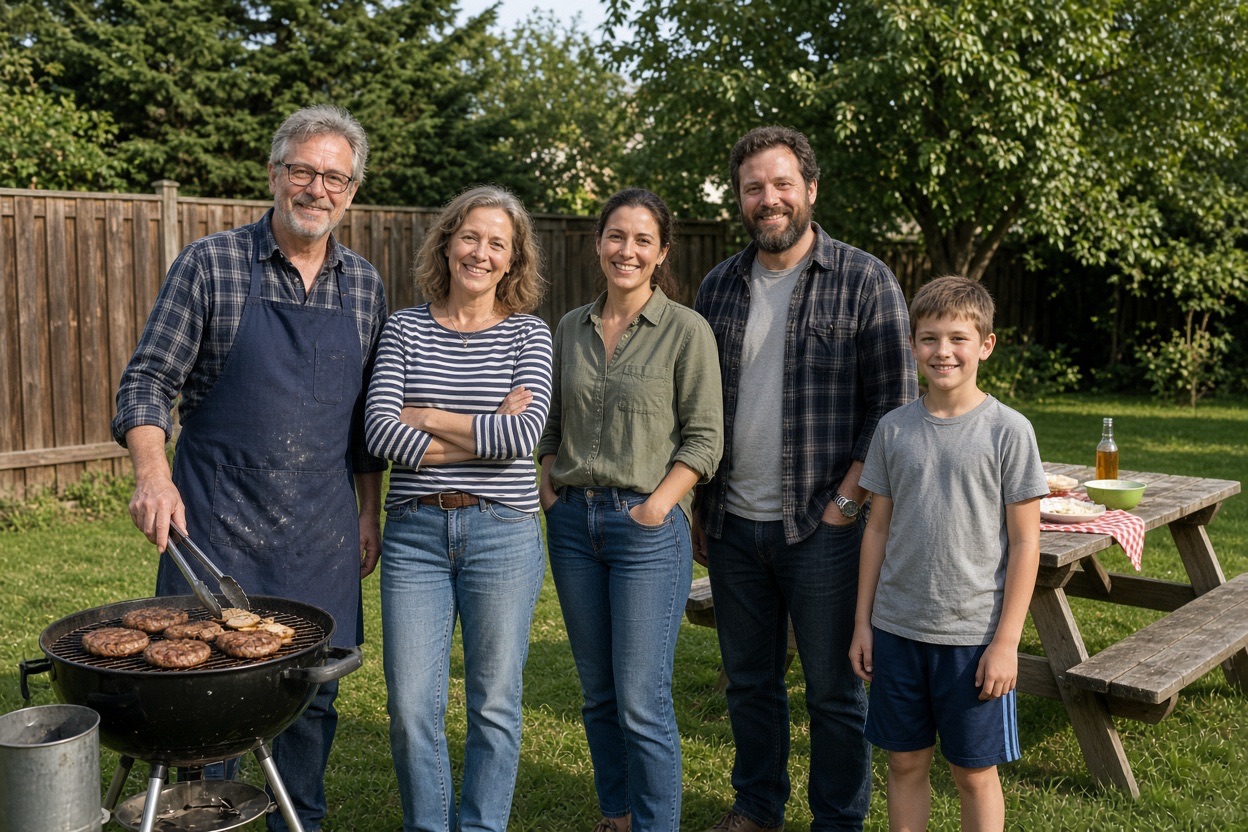
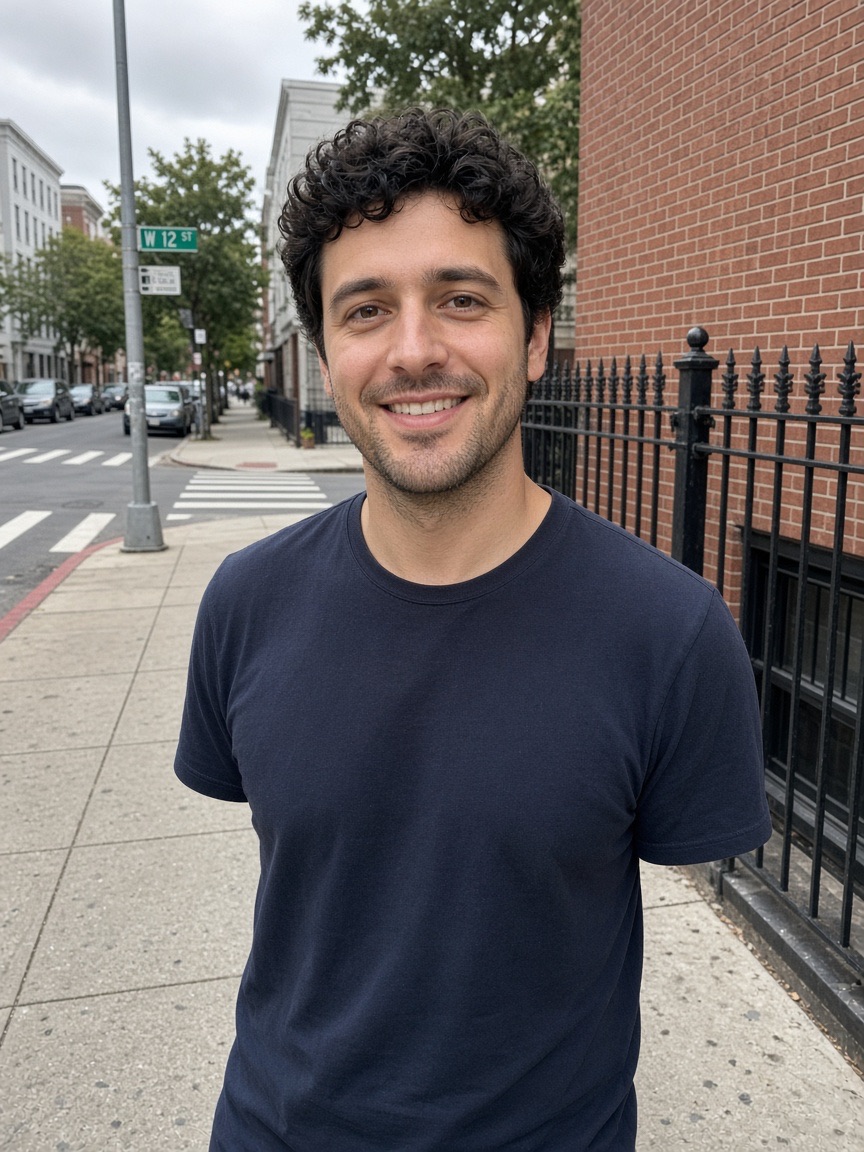
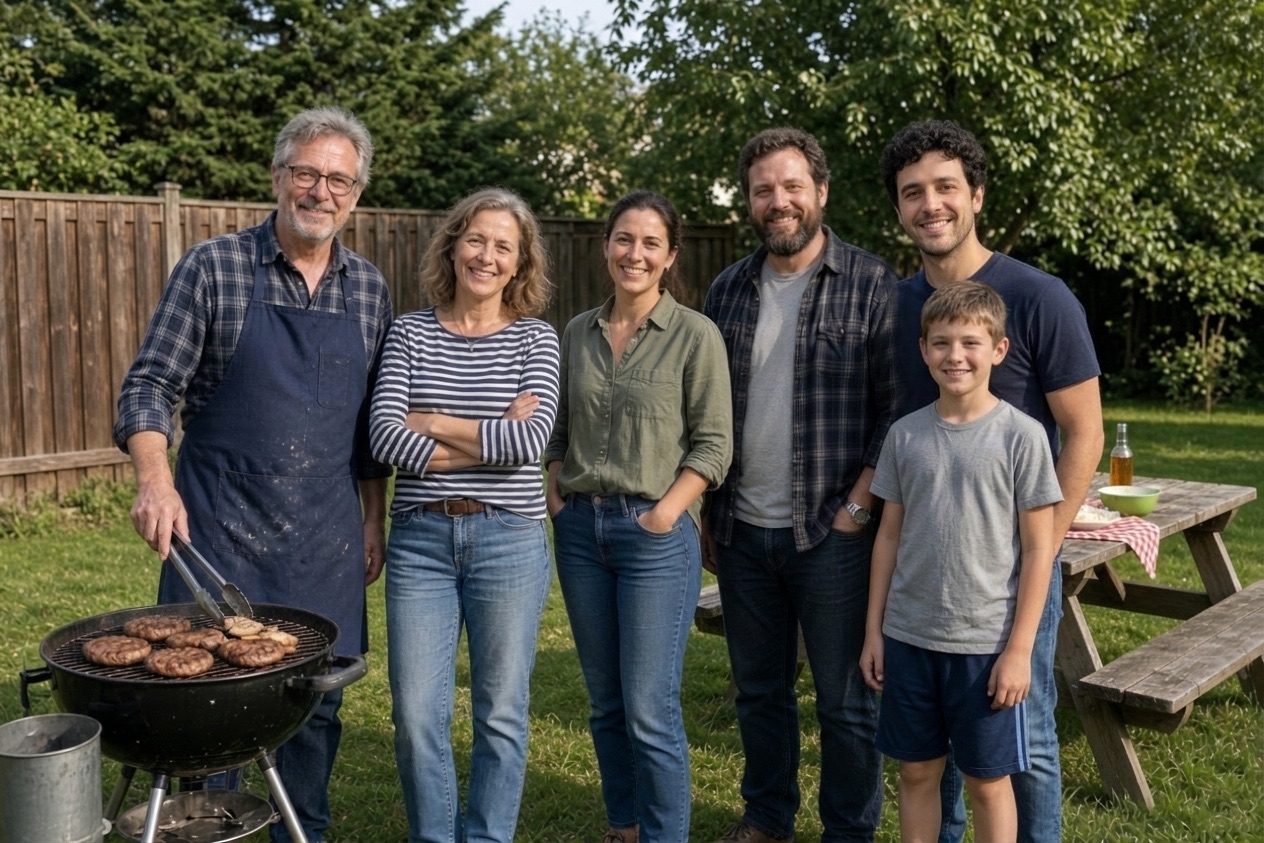
Three real results
Make yoursEach new photo was made from the photos beside it, in about a minute.
The people already in the photo keep their faces, clothes and poses.
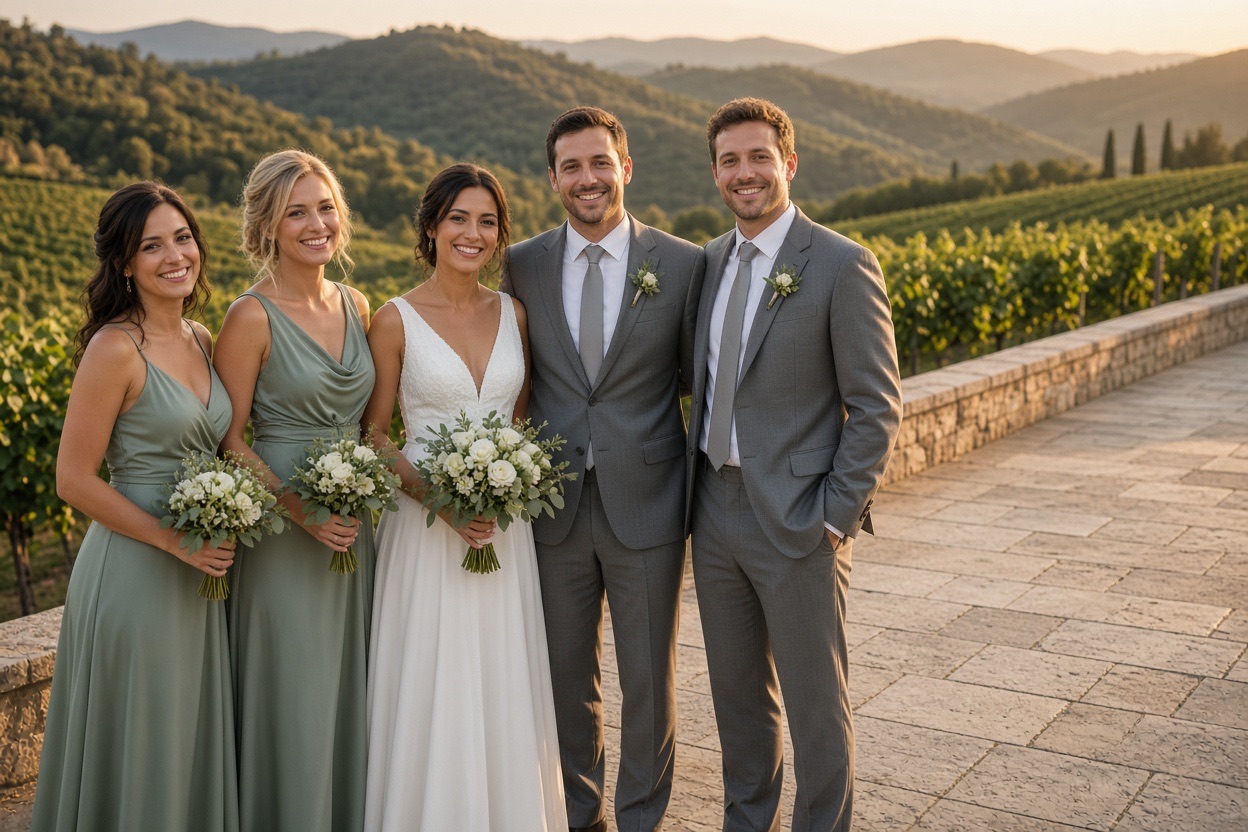
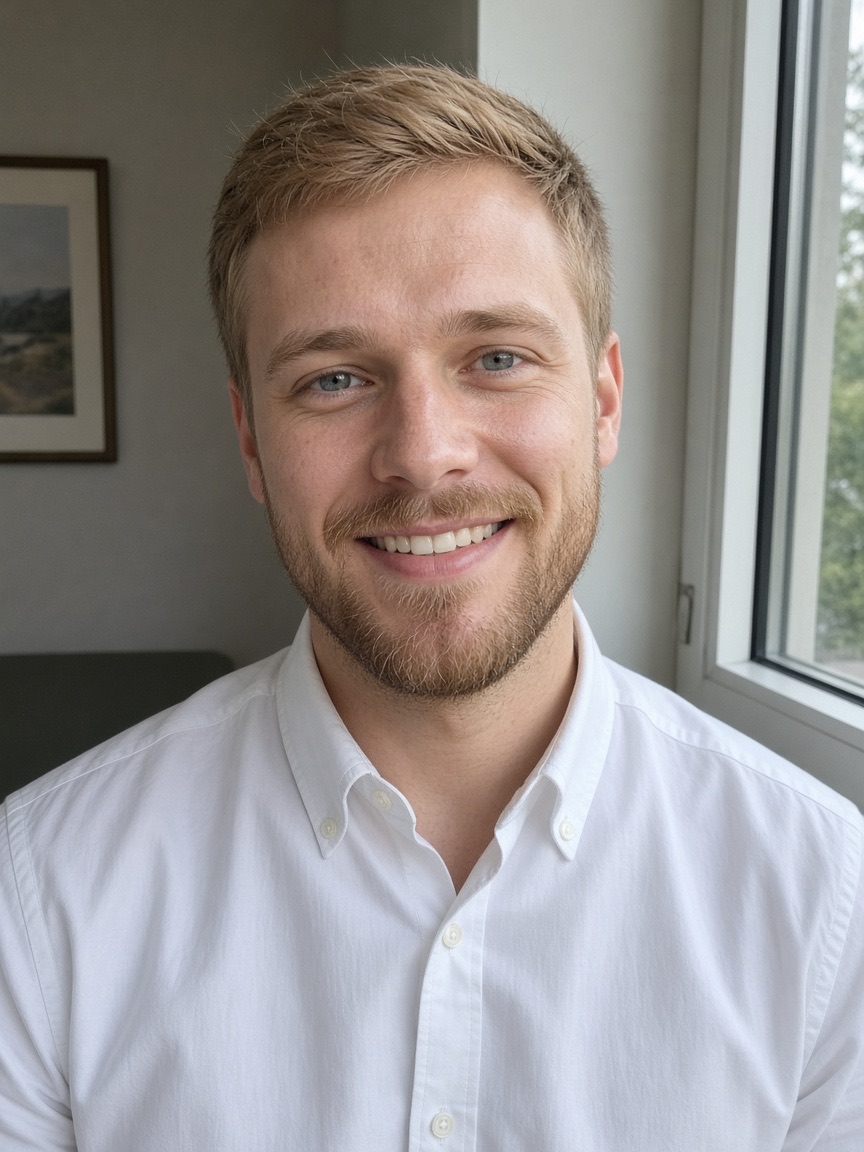
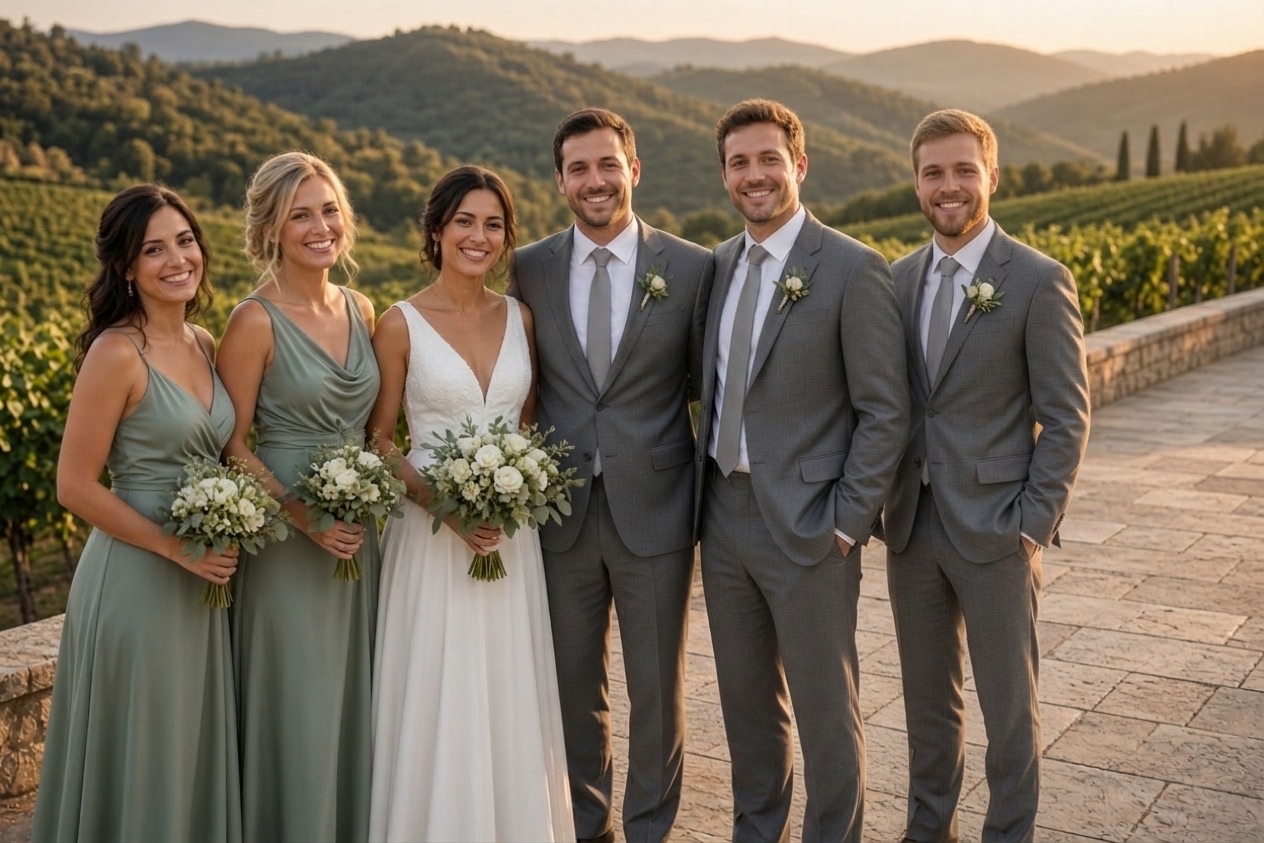
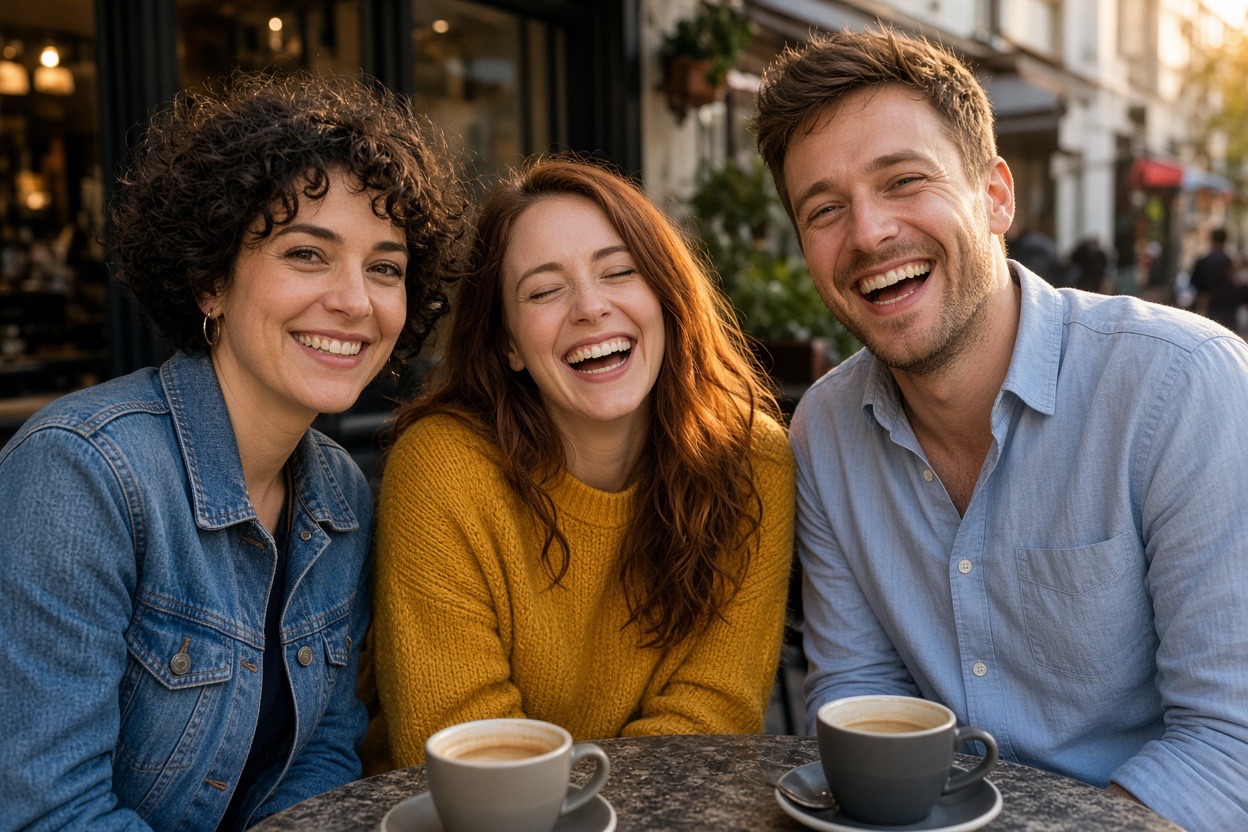
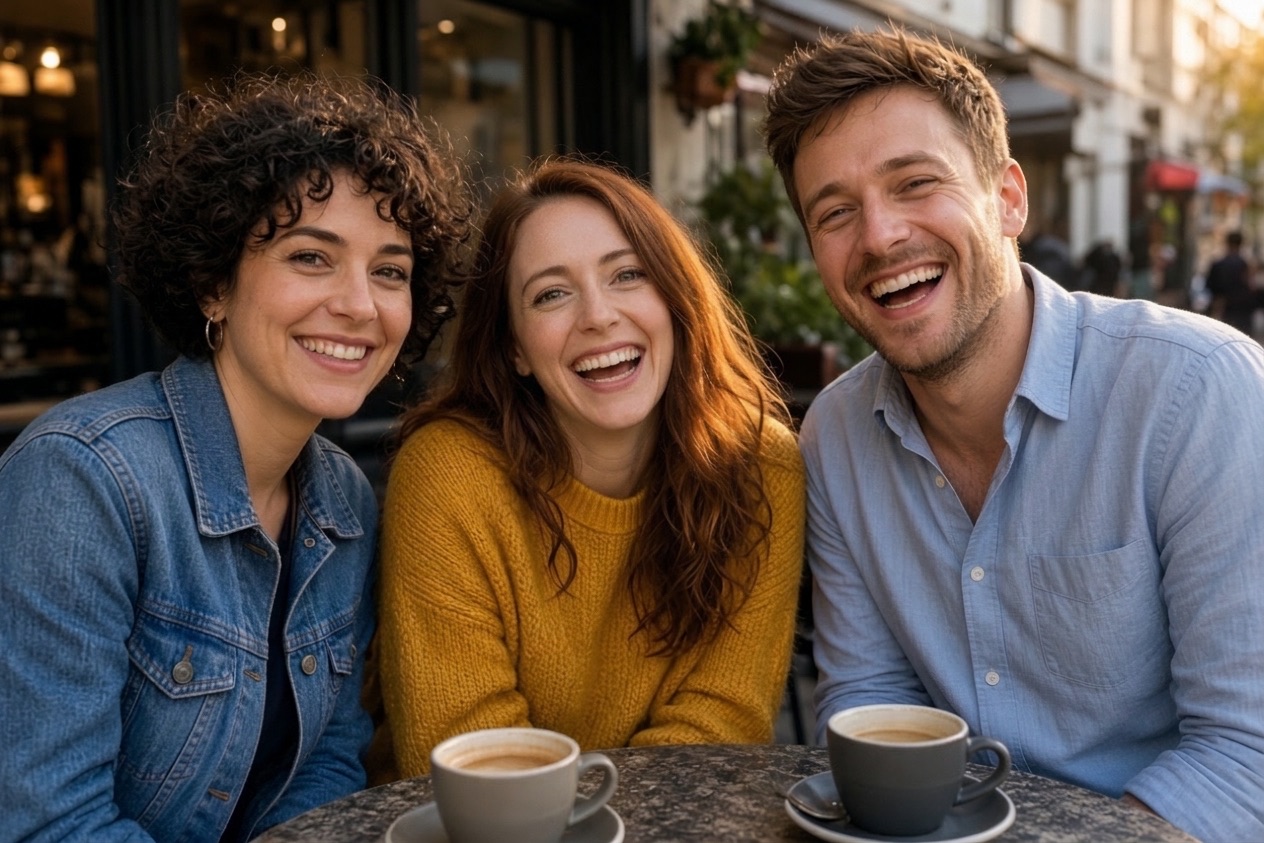
Each new photo was made from the photos beside it, in about a minute.
The people already in the photo keep their faces, clothes and poses.
How it works
To begin, choose the group photo you want to add someone to: a family photo, a trip, a wedding or a party.
Then, add a clear photo of the person who is missing. A selfie or a casual phone photo is fine.
Finally, press the button. In about a minute you get one new photo with everyone in it, ready to download, print or share.
Upload, press one button, download. Nothing to install and nothing to learn.
One new photo, ready to print, about 1 minute.
Included with every photo
The first photo is free
Create an account and one credit is added. No card, the same full quality as a paid photo.
Credits1No watermark
Download the full photo, ready to print or share. The free one too.
photo-together-3f9a2c1e.jpg
Uploads deleted after 24 hours
Your photos are only used to make your picture. Never shown to anyone, sold or used to train AI.
- bbq-group.jpgdeletes in 23 h
- bbq-person.jpgdeletes in 23 h
Faces stay as they were
Everyone already in the photo keeps their face, clothes and pose. The background stays too.
One free redo
If the AI changed someone’s face, email us and that photo is made again for free.
- To
- hello@addpersontophoto.org
- Subject
- Redo my photo, please
On iPhone, Android and the web
Pick both photos from your camera roll and save the result straight back. Nothing to install.
- Photo Library
- Take Photo
- Choose File
1. Match the camera angle and focal length
The most common giveaway is a person shot from a different height. If the group photo was taken at eye level, use a photo of the person taken at eye level too; a selfie held above the head or a photo taken from below will look wrong even when the light is perfect.
Focal length matters as well. Phone selfies use a wide lens that makes faces look rounder and noses larger when held close. A photo taken by someone else from two or three meters away, or with the phone’s 2× lens, matches a normal group photo far better.
2. Match the light and shadow direction
- Look at the faces in the group photo: which side is brighter? The person you add should be lit from the same side.
- Check the ground. Outdoors in sun, everyone casts a shadow in the same direction; the added person needs one too.
- Match the softness: hard midday sun with crisp shadows, or soft shade and overcast light. A studio portrait rarely blends into a sunny backyard.
- Match color temperature: warm evening light, cool shade, yellow indoor bulbs. Skin tones are where a mismatch shows first.
3. Choose full body or waist-up framing
If the group photo shows everyone from head to toe, the added person needs legs and feet that stand on the same ground. You can still use a waist-up photo of them: an AI tool will draw the rest of the body and clothing to fit, while by hand you would need a full-body photo. For waist-up group photos, a head-and-shoulders photo of the person is enough.
Place them where a real person could stand: at the end of a row, half behind someone’s shoulder, or in a gap. Their head should sit at about the same height as the others standing on the same ground, a little lower if they stand further back.
4. Pick a method
| Method | Cost | Time | Skill needed | Best for |
|---|---|---|---|---|
| Picture Together (this site) | First photo free with an account, then from $4.99 for 5 photos. No subscription. | About 1 minute | None: upload two photos and press a button | Most family, trip, wedding and party photos, on any phone or computer |
| Photoshop Generative Fill | Adobe subscription with generative credits | 30 minutes to a few hours | Medium to high: selections, masks, light matching | Full manual control and very large prints |
| Canva (Magic Edit and layers) | Free plan with limited AI edits; most AI tools need Canva Pro | 20 to 60 minutes | Low to medium: cut-out, resize, adjust | Quick collages and social posts; less realistic blending |
| Fiverr or Etsy retoucher | Set by each seller, per photo | 1 to 3 days usually | None for you | Badly damaged originals or complicated poses |
Method: Picture Together (this site)
- Cost
- First photo free with an account, then from $4.99 for 5 photos. No subscription.
- Time
- About 1 minute
- Skill needed
- None: upload two photos and press a button
- Best for
- Most family, trip, wedding and party photos, on any phone or computer
Method: Photoshop Generative Fill
- Cost
- Adobe subscription with generative credits
- Time
- 30 minutes to a few hours
- Skill needed
- Medium to high: selections, masks, light matching
- Best for
- Full manual control and very large prints
Method: Canva (Magic Edit and layers)
- Cost
- Free plan with limited AI edits; most AI tools need Canva Pro
- Time
- 20 to 60 minutes
- Skill needed
- Low to medium: cut-out, resize, adjust
- Best for
- Quick collages and social posts; less realistic blending
Method: Fiverr or Etsy retoucher
- Cost
- Set by each seller, per photo
- Time
- 1 to 3 days usually
- Skill needed
- None for you
- Best for
- Badly damaged originals or complicated poses
Prices of other services change; check their sites before buying.
Doing it by hand: the steps
The steps are the same in Photoshop, the free GIMP or the free browser editor Photopea:
- Open the group photo, then the photo of the person in a second tab.
- Select the person with an object or subject selection tool, refine the edges around the hair, and copy them.
- Paste them into the group photo as a new layer and scale them so their head matches the people beside them.
- Use a layer mask to tuck them partly behind someone’s shoulder; overlap looks more natural than a gap.
- Match brightness and color with Levels or Curves and a color balance adjustment, comparing skin tones side by side.
- Paint a soft shadow on the ground and on the person next to them, then add a little noise to match the grain.
On iPhone, Android and PC
- iPhone and iPad: open this page in Safari or Chrome, choose both photos from Photos, and save the result from the share menu.
- Android: works in Chrome, Samsung Internet and Firefox; the photo downloads to your gallery or Downloads folder.
- PC and Mac: works in any modern browser; drag the two photos in from a folder.
Your photos are safe with us
The photos you upload are only used to make your picture, are never shown to anyone else and are deleted automatically 24 hours after upload. Your finished photo stays private in your account until you delete it. Photos of public figures and explicit content are refused automatically.
Questions
Use the tool at the top of this page: upload the group photo and a photo of the person, and the AI places and blends them for you in about a minute. If you prefer to do it by hand for free, GIMP or Photopea can do the same cut, scale and blend steps as Photoshop.
Open this page in Safari, tap photo 1 to pick the group photo and photo 2 to pick the person, then tap the button. After about a minute, tap Download and save the photo to your camera roll.
Match the camera height, the light direction and the size of the person to the others, give them a shadow, and overlap them slightly with someone instead of leaving a gap. Starting from a photo of the person taken at eye level and in similar light does most of the work.
Yes. Your first photo with the tool on this page is free when you create an account, with no watermark: upload the group photo and the person, and it places and blends them for you. You can also do it entirely by hand for free in GIMP or Photopea with the steps in this guide.
Your first photo is free when you create an account (one free photo per person and network every 30 days). After that, photos come in one-time packs: 5 photos for $4.99, 15 for $9.99 or 40 for $19.99. One credit is one photo, credits never expire, and there is no subscription. You can also buy a pack without creating an account.
The photos you upload are only used to make your picture and are deleted automatically 24 hours after upload. The finished photo is kept privately in your account so you can download it again, until you delete it with your account (Settings → Security → Delete account, which removes your photos right away) or ask us at hello@addpersontophoto.org. Photos are never shown to other visitors, sold or used to train AI.
Use the tool at the top of this page: upload the group photo and a photo of the person, and the AI places and blends them for you in about a minute. If you prefer to do it by hand for free, GIMP or Photopea can do the same cut, scale and blend steps as Photoshop.
More ways to fix and combine group photos
- Add a Person to a PhotoAdd a person to a photo online: upload the group photo and a photo of the missing person, and get one natural picture with everyone in it. First photo free.
- Add a Person to a Photo FreeAdd a person to a photo free: create an account and your first merged photo is on us, with no watermark. Then one-time packs from $4.99, no subscription.
- Combine Two Photos Into OneCombine two photos into one natural picture: merge people from separate photos into the same scene, not a side-by-side collage. First photo free.
- Open Closed Eyes in a PhotoOpen closed eyes in a photo with AI: fix someone who blinked in a group picture so their eyes look naturally open, with everything else left untouched.
- Add Someone to a Family PhotoAdd a missing person to a family photo: the relative who missed the reunion, the holiday dinner or the portrait day. Upload two photos, get one family photo.
- Add Someone to a Wedding PhotoAdd a person to a wedding photo: a bridesmaid, groomsman or relative who missed the bridal party or family portraits. Matching outfit and golden-hour light.